
SmartInbox
Spam, phishing and cold sales out of your Inbox in Mail, decided by Apple Intelligence on your Mac or a model you choose. Requires macOS 26.
License · $4.99

SmartInbox is an extension for Mail. Each message that arrives in your Inbox goes to a model, which decides whether it is spam (cold sales and outreach included) and what kind of mail it is. Spam goes to Junk, and for the rest you choose what happens.
I get a lot of mail that isn’t quite spam: companies offering to fix problems I don’t have or sell services I don’t need. Mail’s junk filter lets most of it through, so I made SmartInbox to ask a model instead.
What it does
- Spam and phishing out of your Inbox: to Junk on a red background, or to Trash or the Archive, with a flag or marked as read.
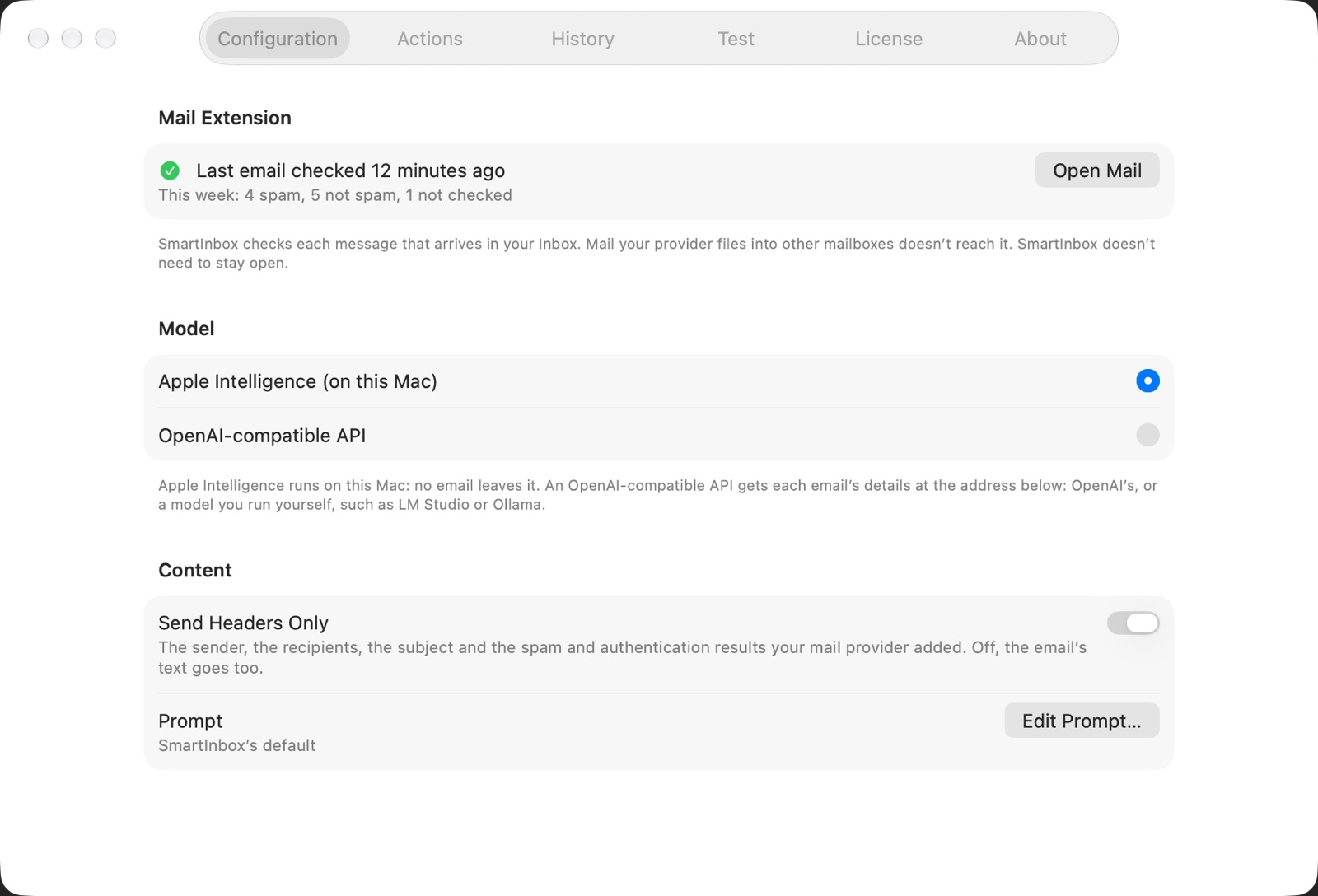
- Apple Intelligence on your Mac, so no email leaves it. Or an OpenAI-compatible API: OpenAI, or a model you run yourself with LM Studio or Ollama, on this Mac or your network.
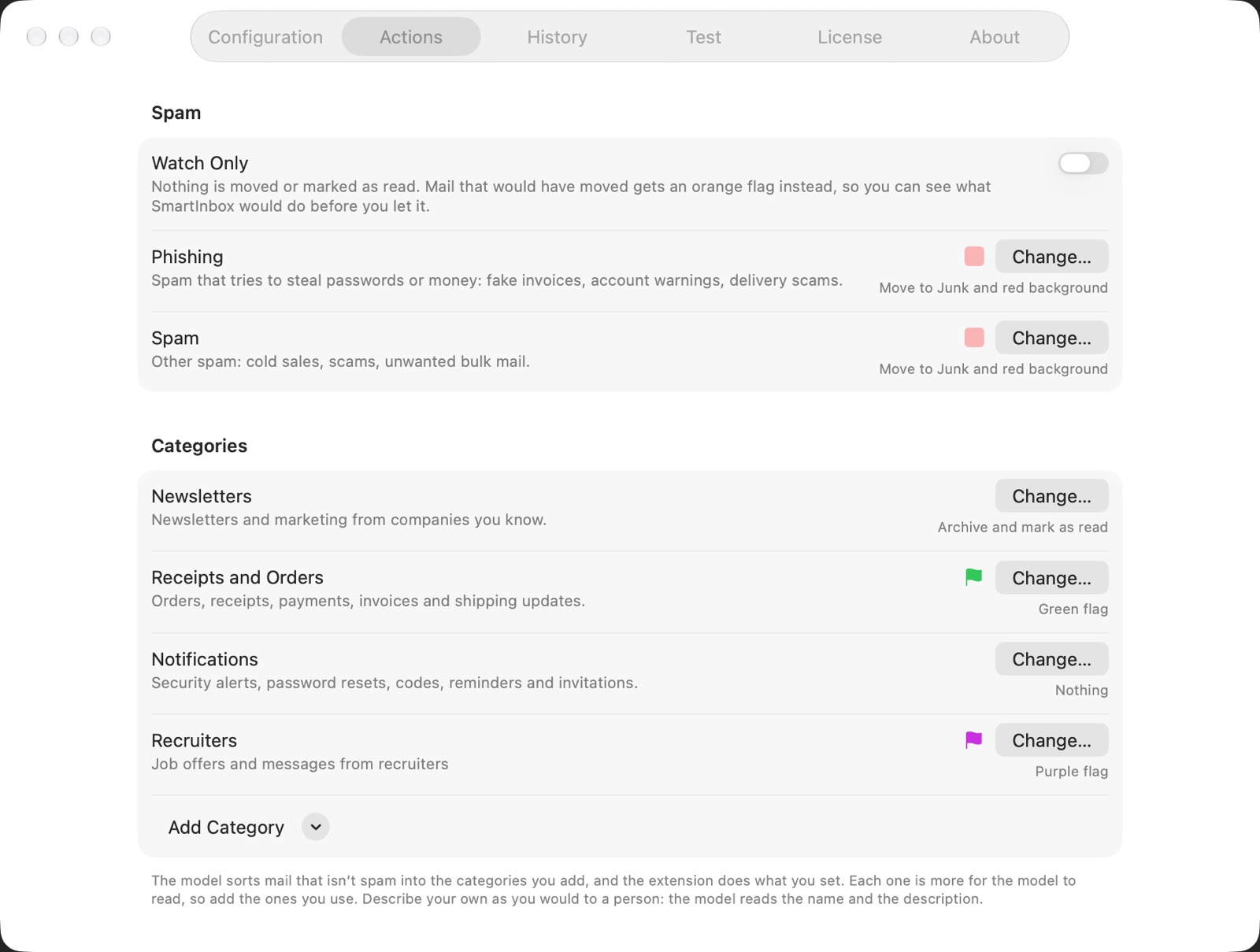
- Categories: add the kinds of mail you want sorted, and the model sorts mail that isn’t spam into them. Pick from Newsletters, Receipts and Orders, Notifications and From People, or describe your own in your own words (“Job offers and messages from recruiters”). Each has its own actions: archive newsletters and mark them as read, flag receipts green.
- Watch Only: nothing moves or is marked as read. Mail that would have moved gets an orange flag instead, so you can see what SmartInbox would do before you let it.
- Never Spam and Always Spam: addresses, or whole domains.
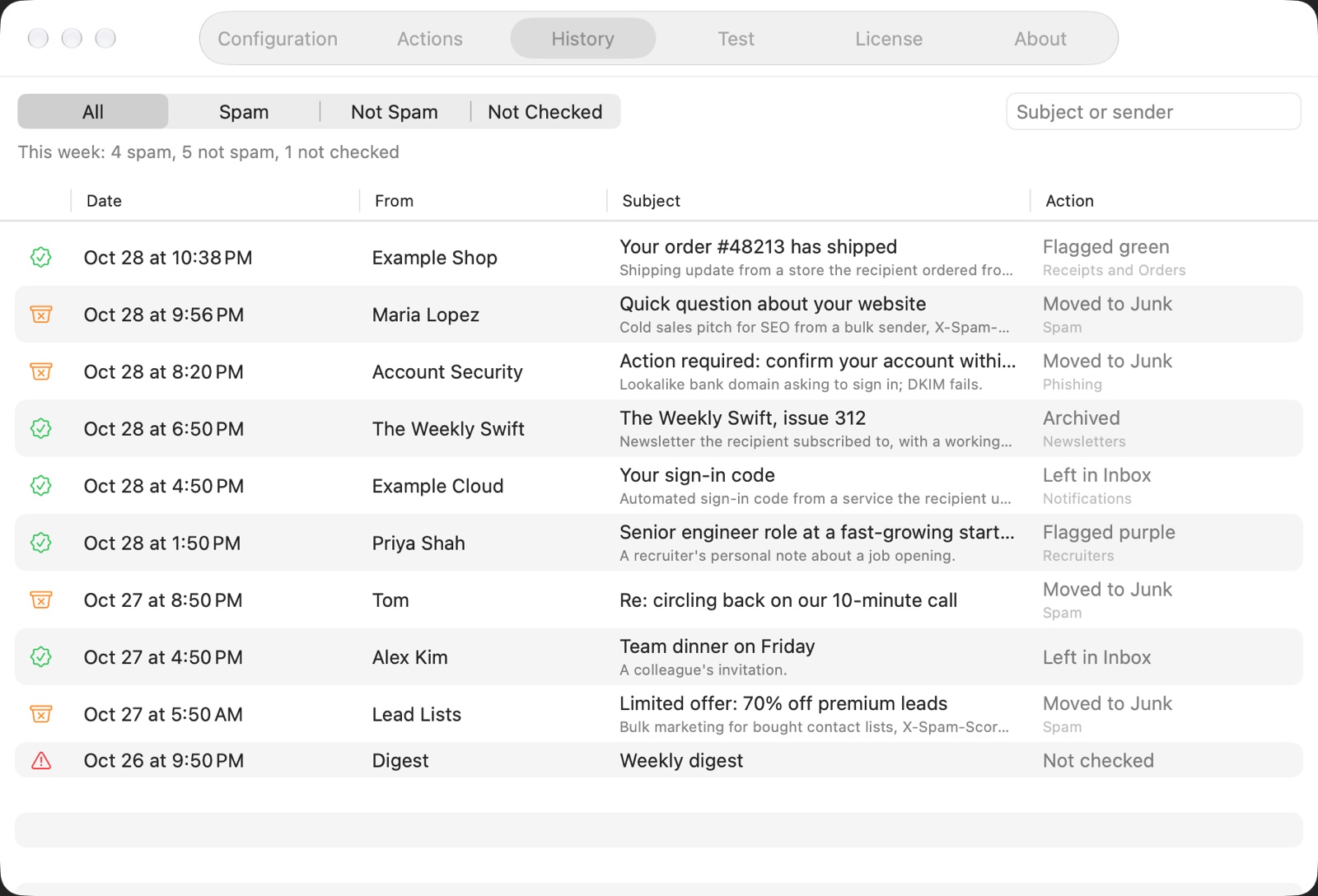
- History: a week of decisions, with who sent each email, its category, the model’s reason and what was done. Show in Mail opens the message.
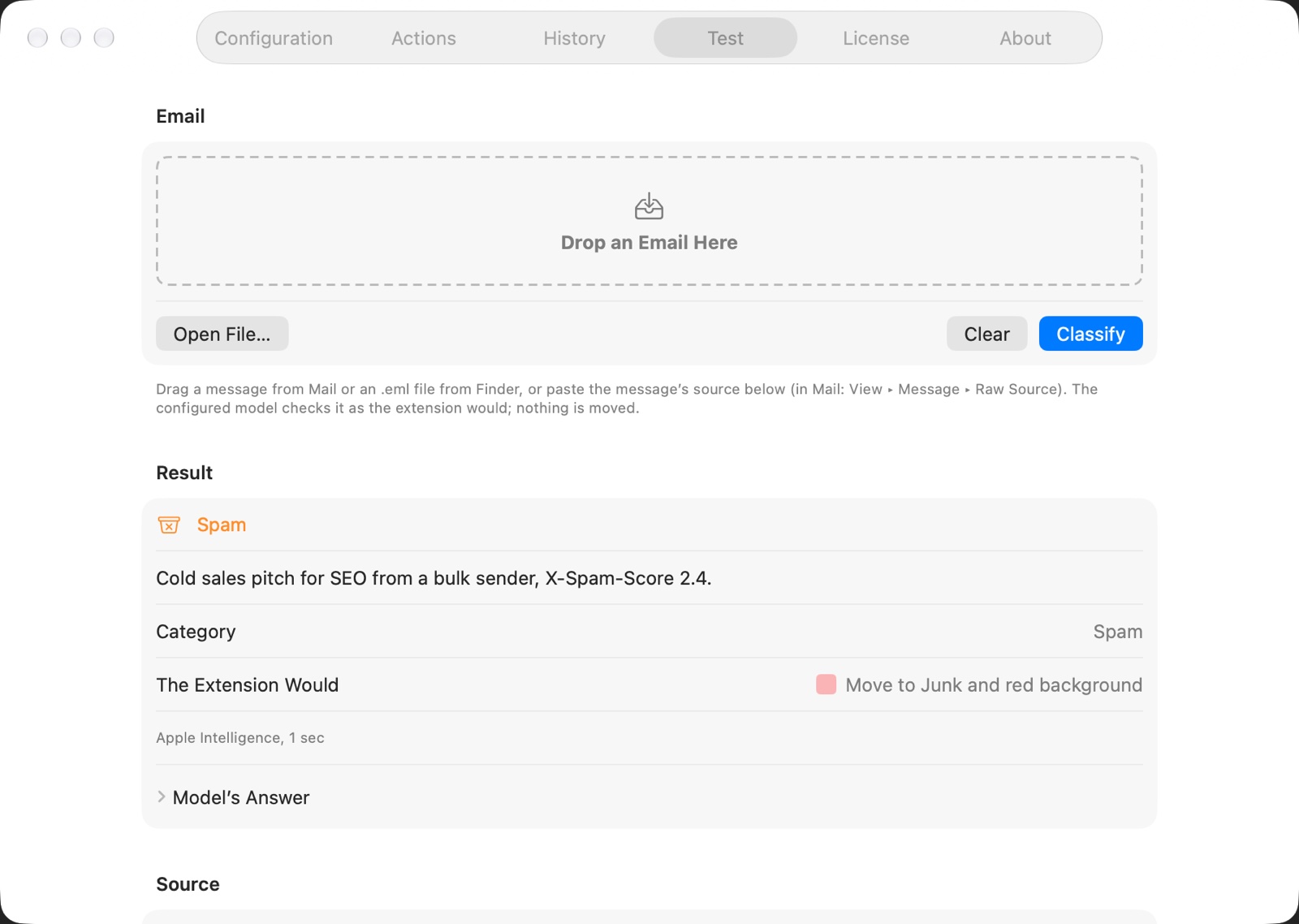
- Test: drag a message from Mail, open an
.emlfile or paste a message’s source, and see what the model says. Nothing is moved. - A warning when you write to a spammer: an address whose mail was marked as phishing or spam this week gets a warning while you write to it.
- Shortcuts: Check Email for Spam.
Installation
- Get SmartInbox from the Mac App Store, or download it with the button above, open the zip, and move SmartInbox to the Applications folder.
- Open it and choose the model in Configuration: Apple Intelligence, or an OpenAI-compatible API.
- In Mail, choose Mail ▸ Settings, click Extensions, and select SmartInbox Extension.
SmartInbox doesn’t need to stay open. Only mail that arrives in your Inbox goes through the extension: mail your provider files into other mailboxes (Fastmail’s rules, for one) doesn’t reach it.
Price
On the Mac App Store, SmartInbox is $4.99, once, with everything unlocked.
From this site, the trial has no end. In it, SmartInbox moves spam and phishing with either model, and their actions, Watch Only and the sender lists all work.
A license is $4.99, once, and unlocks the rest: what is sent of each email (headers only, or the text too, and how much of it), your own prompt, and categories for mail that isn’t spam, with their actions. Buy a license. The key comes by email; paste it in the License tab. If you bought version 1, your license carries over to version 2 by itself.
Requirements
- macOS Tahoe (26) or later. Macs on macOS Sequoia keep version 1.0.1.
- For Apple Intelligence, a Mac with Apple silicon, in a language and region where Apple offers it, with Apple Intelligence turned on in System Settings. Without it, use an OpenAI-compatible API: a model you run yourself, or a hosted service.
- In English, German, French, Spanish, Italian, Portuguese (Brazil), Russian, Ukrainian, Japanese, Korean and Chinese (Simplified and Traditional). The translations were made with AI; the About tab has a link to report a problem with one.
FAQ
Apple Intelligence or an OpenAI-compatible API?
Apple Intelligence keeps every email on your Mac and needs nothing set up. Its model reads a few pages of text at a time, so a long email is cut to fit. An OpenAI-compatible API can be a larger model that reads more of each email, but your mail goes to that service: to OpenAI, unless you run the model yourself.
Can I use a local model?
Yes, and I recommend it if you have a Mac or a server that can run one. LM Studio and Ollama both
serve an OpenAI-compatible API. SmartInbox talks plain http:// only to this Mac and your local
network (localhost, 127.0.0.1 and .local names); anything else needs https://. The first
time, macOS asks whether SmartInbox may use the local network: allow it. Check Connection in
Configuration asks the server for its models, without sending any email.
How well a model sorts mail depends on the model and on your Mac, and we can’t promise that a particular one works well: check a few emails with it in the Test tab before you rely on it.
The blog post Hey DeepSeek, can you reduce junk in my inbox? shows version 1 with a model running in LM Studio.
Why did some spam stay in my Inbox?
History shows every email the extension checked and why it decided what it did. Apple Intelligence declines to read some emails, such as pharmacy and adult-dating spam; those stay in the Inbox, and History says so. Add their senders to Always Spam, or use an OpenAI-compatible API. Mail that never reached the Inbox (filed elsewhere by your provider) isn’t in History at all.
What is the difference between the App Store and website versions?
They sort mail the same way, with the same models. The App Store version is sandboxed, updates through the App Store and has everything unlocked once you buy it. The website version has a trial with no end, takes a license key from our store, and updates itself.
A purchase of one doesn’t unlock the other: they are bought separately.
Is SmartInbox sandboxed?
The Mail extension is, in both versions. The App Store version of the app is too. The website version of the app isn’t, so it can install its own updates; it is signed by us and notarized by Apple. Download it only from this page.
How do I move my license to another Mac?
Click Remove… in the License tab on the Mac that has it, then activate it on the other one. If that Mac is gone, sign in to My Orders at Lemon Squeezy with the email you bought it with and remove the old Mac from the key there, or email support+smartinbox@loshadki.app.
I lost my license key. How do I get it again?
Sign in to My Orders at Lemon Squeezy, our store, with the email you bought the license with. It emails you a sign-in link, and your order there shows the license key. If you can’t find it, email support+smartinbox@loshadki.app.
Privacy Policy
SmartInbox collects no data: there is no account, no analytics and no server of ours, and History stays on your Mac for a week.
With Apple Intelligence, your mail never leaves your Mac. With an OpenAI-compatible API, the extension sends each email that arrives in your Inbox to the address you enter: its sender, recipients and subject, the spam and authentication headers your mail provider added, and, unless you send headers only, its text. That is OpenAI’s server unless you enter your own, and what happens to the emails there is up to that service. SmartInbox asks before it sends anything there.
Otherwise, SmartInbox from this site goes online only for these two; the App Store version does neither:
- Updates: it checks loshadki.app for new versions.
- The license: it sends the key and this Mac’s model name to Lemon Squeezy, our store, when you activate it and once a month after.
We believe very strongly in our customers’ right to privacy. Our customer records are not for sale or trade, and we will not disclose our customer data to any third party except as may be required by law.
Any information that you provide to us in the course of interacting with our sales or technical support departments is held in strict confidence. This includes your contact information (including, but not limited to your email address and phone number), as well as any data that you supply to us in the course of a technical support interaction.
Release history
2.0 - 2026-10-29
- On the Mac App Store, from 2026-11-05.
- Apple Intelligence: SmartInbox can decide on your Mac, with no email leaving it.
- Categories for mail that isn’t spam, ready-made or your own, each with its own actions.
- Spam can go to Junk, Trash or the Archive, flagged, colored or marked as read.
- Watch Only, to see what SmartInbox would do before it moves anything.
- Never Spam and Always Spam lists of addresses and domains.
- History shows the sender, the category, the model’s reason and what was done, and opens the message in Mail.
- The Test tab: check one email with the model.
- A warning when you write to an address whose mail was marked as phishing or spam.
- A Shortcuts action, Check Email for Spam.
- In 11 more languages, translated with AI.
- A new icon.
- Requires macOS Tahoe (26).
1.0.1 - 2025-01-30
- Fix compatibility with OpenAI API
1.0 - 2025-01-29
- Initial release
Support
Email suggestions, questions and bugs to support+smartinbox@loshadki.app. Include the macOS version, SmartInbox’s version (the About tab) and the model you use.