
RenameNinja
Rename tool for files, made for developers.


Documentation
You have a lot of options to rename files. You can use bash and the terminal. Or you can find very user-friendly apps with complicated UI, a lot of buttons and options. But if you are a developer, you probably want to have a simple and fast way to rename files. That is the reason why I made RenameNinja. It allows you to run Regular Expressions to extract the fields. It allows you to run JavaScript to run any code you want to modify the fields. And it provides a final pattern where you can combine all the fields, extracted and created by you.
It is basic but very powerful. Real Ninjas can do a lot with a few tools.
Features
- Extract fields from the file name using Regular Expression.
- Modify the fields with custom JavaScript code. Use
fieldsobject to access the fields. Usecontextobject to store context for all files (useful for custom numbering).console.log()output is shown under each file. - Construct new file name using the fields and custom strings. The Insert Field menu inserts a field at the cursor.
- Rename files, and Undo for rename operation.
- App extracts fields for images/photos (EXIF), video and audio files, PDF and Office documents (see FAQ for the list of available fields).
- Preview of the new file names.
- Highlights the available fields, and highlights (red) fields that are not available for the file.
- See all available fields in real time for each file by navigating in the TreeView.
- App saves last 10 rename sessions, so you can switch between them (Recent menu button).
- Rename button is available only when each file did not fail the regular expression or/and JavaScript code.
- New names are checked before anything is renamed: empty names,
/or:, names over 255 bytes, duplicates and files that already exist. Files are never overwritten. - File menu with keyboard shortcuts: Add Files… (⌘O), New (⌘N), Rename (⌘R), and Undo (⌘Z) after a rename.
- Updates: the App Store version through the App Store, the website version by itself (using Sparkle framework).
- Quicklook preview for original files (double-click the file name or press Space), and Show in Finder from the context menu.
- Available in English, German, French, Spanish, Italian, Brazilian Portuguese, Ukrainian, Russian, Japanese and Simplified Chinese (translated with AI).
Installation and configuration
Get the application from the App Store, or download the free trial using the link above. Unzip the downloaded application and move it to the Applications folder.
Launch the application.
Drop files in the window or open files.
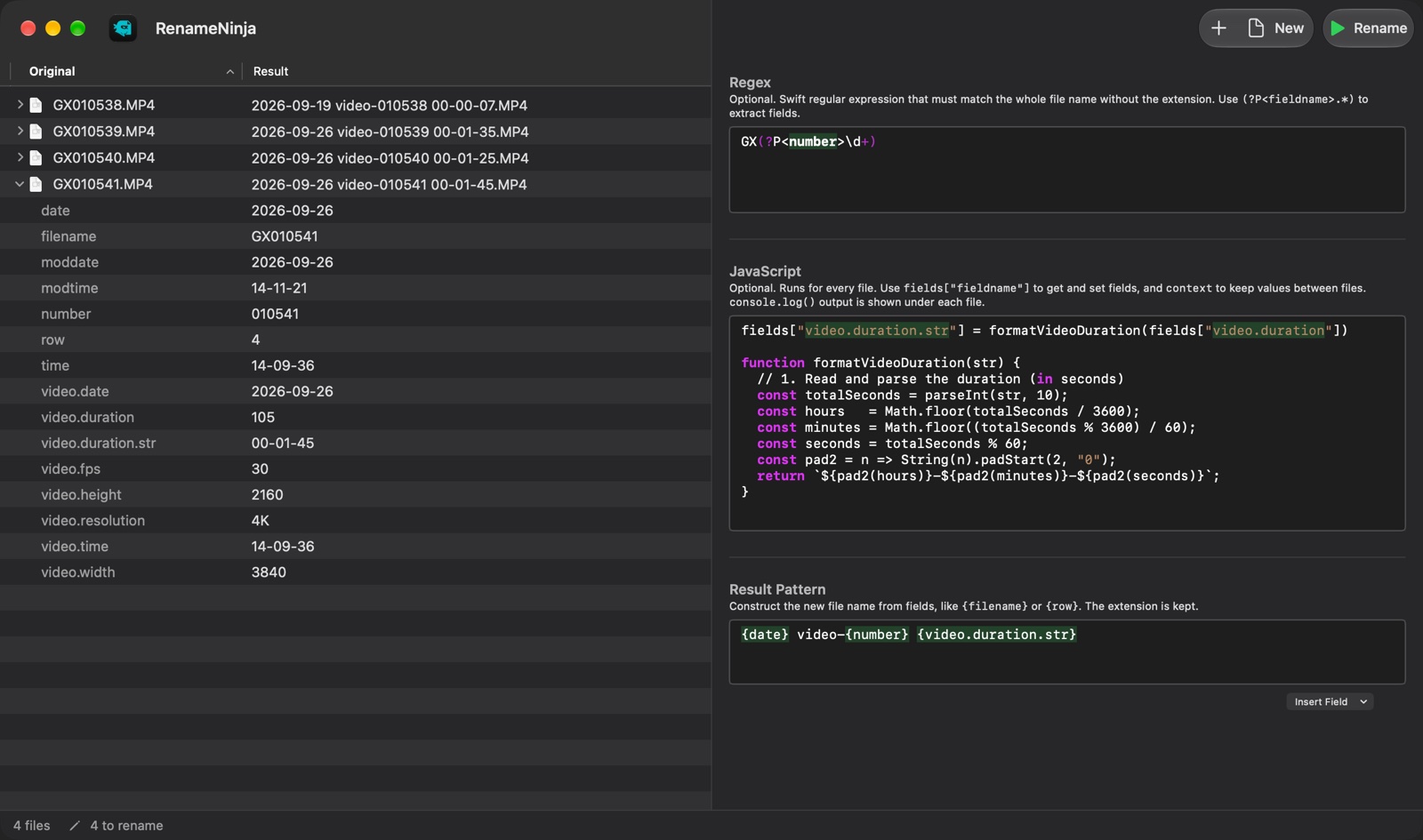
Optionally, write a Regular Expression to extract fields. Using Swift Regular Expressions, you can extract fields, similar to
GX(?P<number>\d+)(Example of GoPro video files) to extract numbers from the file name. The regular expression must match the whole filename (excluding extension).Optionally, write JavaScript code to modify the fields. You can use any JavaScript code to modify the fields. For example, for video fields we will format
video.durationtoHH-MM-SSformat, and save it as a new stringvideo.duration.str.
fields["video.duration.str"] = formatVideoDuration(fields["video.duration"])

function formatVideoDuration(str) {
  // 1. Read and parse the duration (in seconds)
  const totalSeconds = parseInt(str, 10);
  const hours   = Math.floor(totalSeconds / 3600);
  const minutes = Math.floor((totalSeconds % 3600) / 60);
  const seconds = totalSeconds % 60;
  const pad2 = n => String(n).padStart(2, "0");
  return `${pad2(hours)}-${pad2(minutes)}-${pad2(seconds)}`;
}
Finally, we will construct a new filename using the fields. You can use any field, including the ones you created in JavaScript. We can use the format
{date} video-{number} {video.duration.str}, where we use custom strings and references to the fields.Press the Rename button to rename files.
Release history
1.2 - 2026-10-21
- Available in German, French, Spanish, Italian, Brazilian Portuguese, Ukrainian, Russian, Japanese and Simplified Chinese (translated with AI)
- File menu with Add Files… (⌘O), New (⌘N) and Rename (⌘R); undo a rename with ⌘Z
- New names are checked before renaming: empty names,
/or:, names over 255 bytes, duplicates and files that already exist - Swapped names and shifted sequences rename correctly; files are never overwritten and are moved back when a rename fails
{row}numbers files in the order of the file list (IMG_2 before IMG_10)- JavaScript runs about 20 times faster, with a timeout per file;
console.log()output is shown under each file - Status bar, errors next to each file, Quick Look and Show in Finder
- Insert Field inserts at the cursor
- The Recent menu keeps the newest renames
- Removing a license key frees its activation for another Mac
- Fixed audio tags that were never read, and crashes on some video durations and EXIF exposure times
1.1.1 - 2025-09-16
- Update for macOS Tahoe
1.1 - 2025-05-09
- Global
contextfor JavaScript to reference fields for all files - Add field
row(numbered from 1 to …) - Insert placeholder menu under Result Pattern to quickly reference fields
- Double-click the original file name for preview
1.0.1 - 2025-05-08
- Metadata for PDF
- Metadata for Office documents (Word, Excel, Numbers, Pages). Extracted from Spotlight.
1.0 - 2025-05-08
- Initial release
FAQ
What is the difference between the App Store and website versions?
They rename files the same way. The App Store version is sandboxed: the first time you rename files in a folder, it asks you to allow access to that folder. Settings lists the folders you allowed, and removing one there makes it ask again. It updates through the App Store. The website version is not sandboxed, has an unlimited trial, takes a license key from the Loshadki Web Store, and updates itself.
Can I move my purchase between the App Store and website versions?
No. They are separate applications, and a purchase of one doesn’t unlock the other.
How long is the trial?
The website version’s trial is unlimited. I really like the idea of providing the app for free, and if you have an opportunity to support the development, please do it. Otherwise, it will show you a trial popup every time you start a new rename session. But it will not limit the functionality.
How can I purchase the license?
Purchase it from Loshadki Web Store.
I have a discount code, how do I use it?
Go to Loshadki Web Store, choose the product you want to purchase, and enter the discount code in the checkout page.
I lost my license key. How do I get it again?
Sign in to My Orders at Lemon Squeezy, our store, with the email you bought the license with. It emails you a sign-in link, and your order there shows the license key. If you can’t find it, email support+renameninja@loshadki.app.
Not sandboxed app, does it mean unsafe?
The website version isn’t sandboxed. The developer signs our application. As long as you download it from our website, you can be sure that it is safe. If you prefer a sandboxed app, get the App Store version.
Which OS versions are supported?
macOS Sonoma 14.1 and later. The application is built using SwiftUI, so it is not compatible with older versions of macOS.
How can I implement custom numbering for files?
JavaScript provides a global context for all files where you can store custom fields. For example, if you want to implement
custom numbering instead of what is provided by row, you can do this:
context["fileno"] = (parseInt(context["fileno"] ?? "0") + 10);
fields["fileno"] = context["fileno"];
Where we start from 10 and increment by 10 for each file and assign it to the field fileno. And you can use this field
in the Result Pattern, for example {date} {fileno} {name}.
What fields are extracted from the files?
filename- the name of the filedate- the date of the file (YYYY-MM-DD)time- the time of the file (HH-MM-SS)moddate- the modification date of the file (YYYY-MM-DD)modtime- the modification time of the file (HH-MM-SS)row- the row number of the file in the list (1-based)
Image Fields:
image.width- width of the image in pixelsimage.height- height of the image in pixelsimage.make- manufacturer of the camera (e.g., “Canon”, “Nikon”)image.model- model of the cameraimage.lens- lens model used to capture the imageimage.exposure- exposure time in decimal format (e.g., “0.0080”)image.exposure.frac- exposure time in fractional format (e.g., “1-125” for 1/125 second)image.aperture- aperture value with “f” prefix (e.g., “f2.8”)image.fnumber- f-number value without prefix (e.g., “2.8”)image.iso- ISO sensitivity valueimage.focal_length- focal length in millimetersimage.focal_length_35mm- equivalent focal length in 35mm formatimage.date- original capture date from EXIF data (YYYY-MM-DD)image.time- original capture time from EXIF data (HH-MM-SS)image.latitude- GPS latitude in decimal degreesimage.longitude- GPS longitude in decimal degreesimage.altitude- GPS altitude in meters
Video files:
video.duration- length of the video in secondsvideo.width- width of the video in pixelsvideo.height- height of the video in pixelsvideo.fps- frame rate of the video (frames per second)video.resolution- categorized resolution (“8K”, “4K”, “1080p”, “720p”, “480p”, or “SD”)video.audio_tracks- number of audio tracks in the videovideo.date- creation date of the video (YYYY-MM-DD)video.time- creation time of the video (HH-MM-SS)
Audio files:
audio.duration- length of the audio in secondsaudio.title- title of the audio trackaudio.artist- artist/performer of the audio trackaudio.album- album nameaudio.genre- genre of the audio trackaudio.track_number- track number within albumaudio.disc_number- disc number for multi-disc albumsaudio.year- release year of the audioaudio.sample_rate- sample rate in Hzaudio.bit_depth- bit depth (8, 16, 24, or 32)audio.channels- number of audio channelsaudio.channel_type- audio channel configuration (“mono”, “stereo”, or “multi”)
PDF files:
pdf.title- title of the PDF documentpdf.author- author of the PDF documentpdf.subject- subject of the PDF documentpdf.creator- software used to create the PDF documentpdf.producer- software used to produce the PDF documentpdf.date- creation date of the PDF document (YYYY-MM-DD)pdf.time- creation time of the PDF document (HH-MM-SS)pdf.moddate- last modification date of the PDF document (YYYY-MM-DD)pdf.modtime- last modification time of the PDF document (HH-MM-SS)pdf.page_count- number of pages in the PDF document
Office files (Word, Excel, PowerPoint, Numbers, Pages, Keynote):
Spotlight provides data, so it may not be available for all files.
doc.title- title of the documentdoc.authors- author of the documentdoc.creator- creator of the documentdoc.description- description of the documentdoc.subject- subject of the document
Privacy Policy
RenameNinja collects no analytics. Your files, their names and your rules stay on your Mac. The App Store version never goes online. The website version goes online only for:
- Updates: it checks loshadki.app for new versions.
- The license: when you activate a key, it sends the key and this Mac’s name to Lemon Squeezy, our store, and checks the key with them once a day after that.
We believe very strongly in our customers’ right to privacy. Our customer records are not for sale or trade, and we will not disclose our customer data to any third party except as may be required by law.
Any information that you provide to us in the course of interacting with our sales or technical support departments is held in strict confidence. This includes your contact information (including, but not limited to your email address and phone number), as well as any data that you supply to us in the course of a technical support interaction.
Support
Please email us any suggestions, ideas, questions or discovered bugs to support+renameninja@loshadki.app