
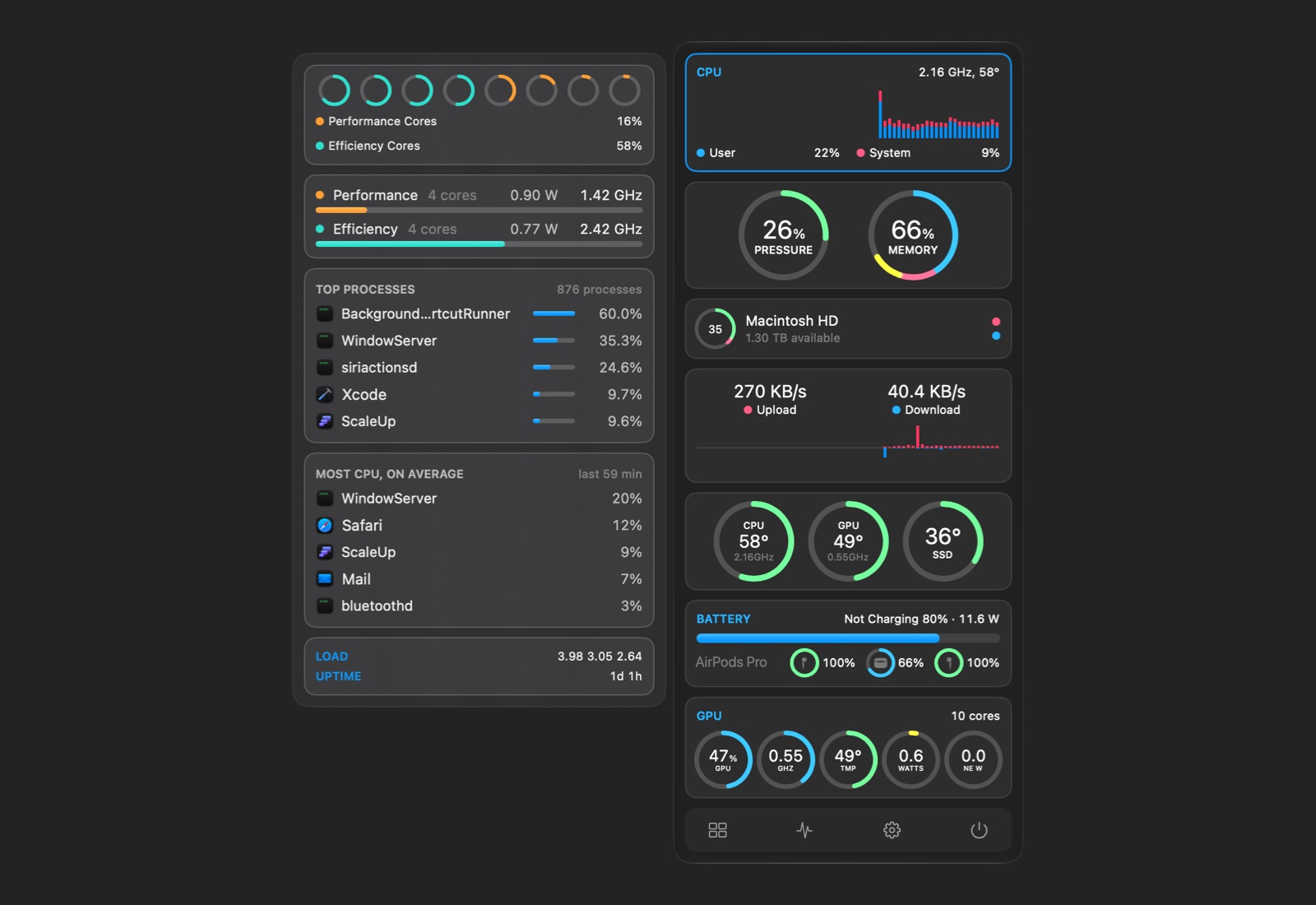
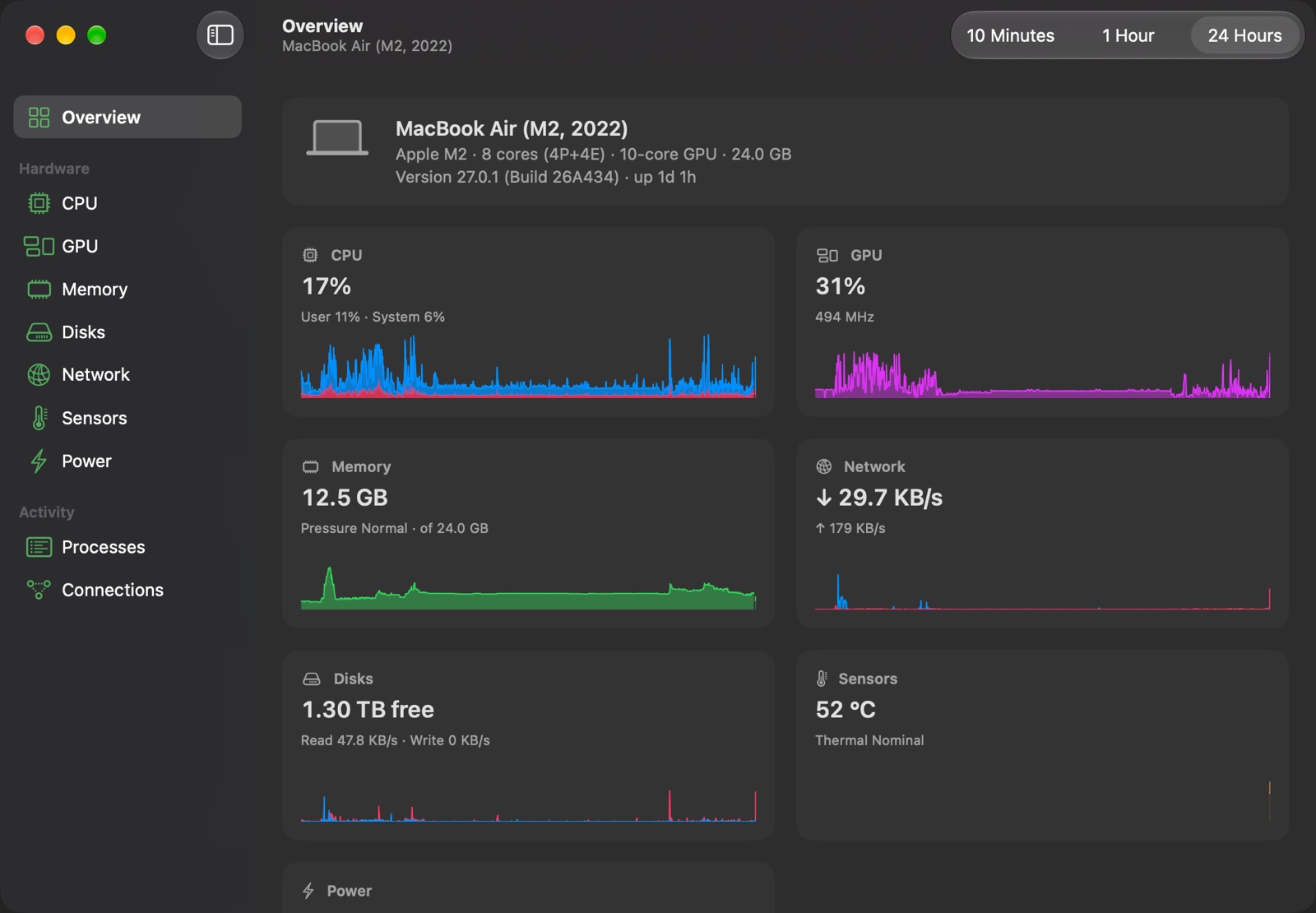
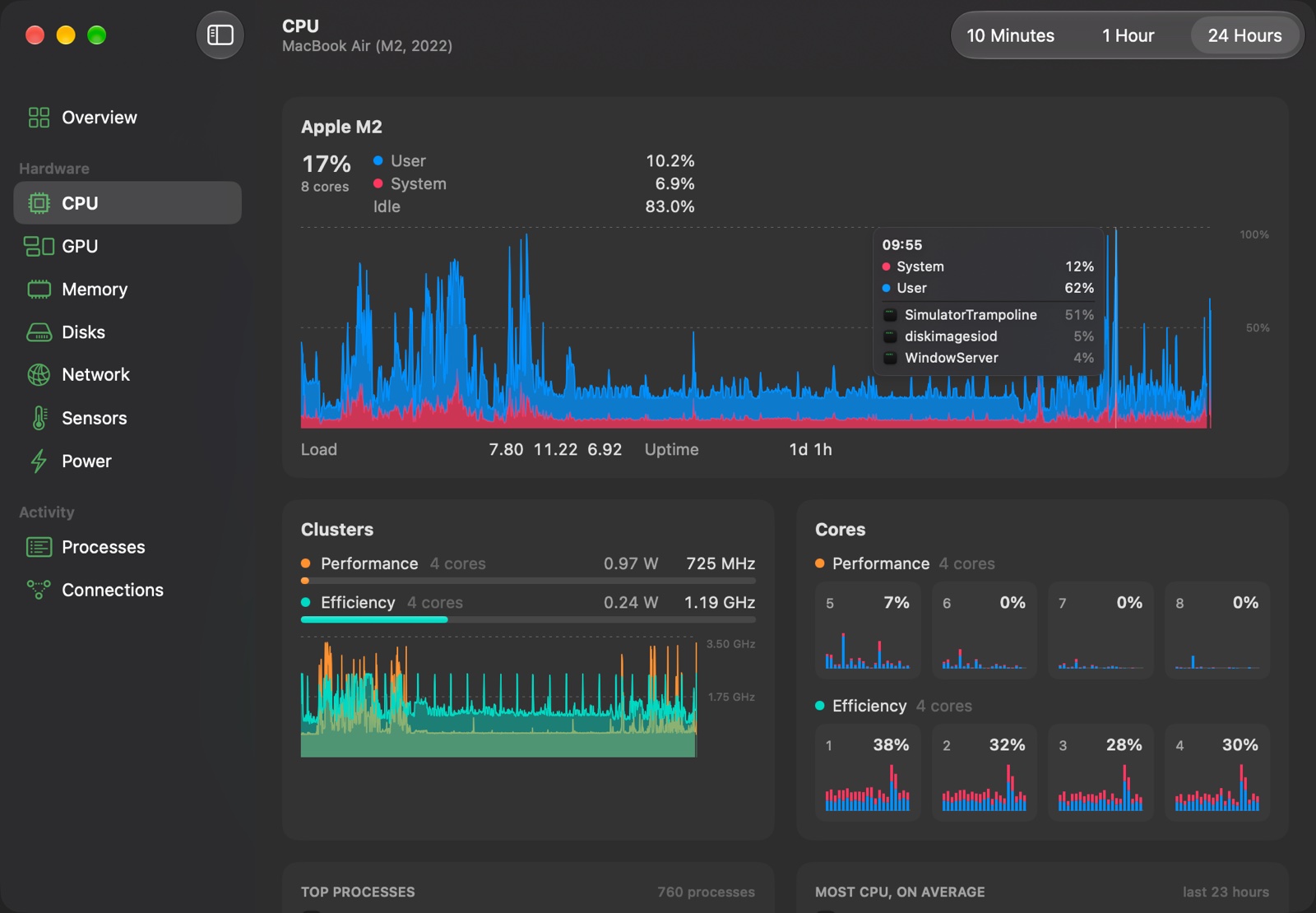
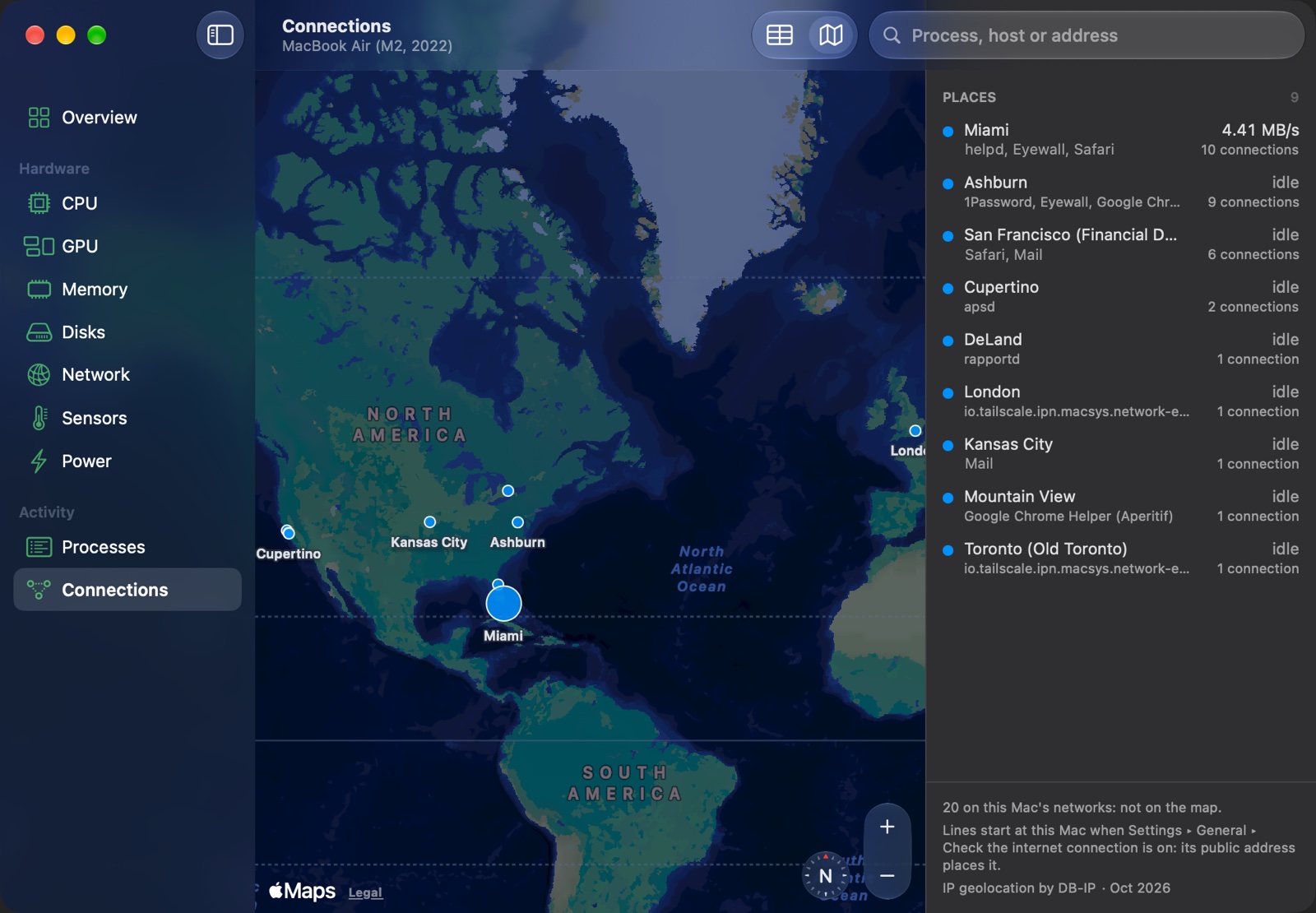
Paddock is a system monitor for Macs with Apple silicon. It sits in the menu bar as a single item, and its menu has a card for each part of the Mac. Rest the pointer on a card for the details: the cores and their clusters, the processes using them, the volumes, the sensors, the battery. The dashboard window shows the same parts over time, with every process and every network connection.
Paddock is free. Paddock Pro adds the last 24 hours, the apps behind every minute, app alerts, Fan Boost, your other Macs, desktop widgets, the connections map and the sleep history. Every Mac gets Pro for 14 days.
What it shows
- CPU: usage by cluster and core, the frequency each cluster runs at, load and uptime, the processes using it.
- GPU: usage, frequency, and the share each app uses, as Activity Monitor counts it.
- Memory: pressure, what the memory holds (apps, wired, compressed, cached), swap, the processes using the most.
- Disks: reads and writes, the free and purgeable space of each volume, and each drive’s own health report (wear, spare blocks, temperature, data written).
- Network: traffic by interface and by app, the Wi-Fi link, the round trip to your router and to the internet, a speed test.
- Sensors: the CPU, GPU, memory, SSD and battery temperatures, and the fans’ speeds.
- Power: the whole Mac’s watts and the chip’s parts, the adapter, the battery’s charge and health, AirPods and Magic accessories, and what keeps the Mac awake right now.
The dashboard adds Processes, a sortable table of every process with its CPU, GPU, memory, energy, disk use, threads and wakeups, and Connections, every socket of every app with its traffic, the host it goes to and whether it stays on your network.
The menu bar item is yours to arrange: which parts go in the bar, in what order, and whether each is a value, a graph, a bar or a symbol, in color or in the menu bar’s own monochrome.
Free and Pro
Free, for as long as you use it:
- The menu bar item, the menu and every details panel.
- The dashboard, with charts of the last hour.
- Processes and the table of connections.
- Notifications about the Mac: a hot CPU, critical memory pressure, the chip slowed to cool down, low disk space, the battery.
- The privileged helper, for exact numbers (below).
- Letting your other Macs watch this one.
Pro, $9.99 once, for up to five Macs:
- The last 24 hours in every chart, and the apps behind every minute: point at a spike to see what caused it, or read which apps used the most CPU, memory, energy, disk and network over the hour or the day.
- App alerts: a notification when an app keeps the CPU busy for ten minutes, or its memory keeps growing for an hour (a leak, more often than not).
- Fan Boost: a floor for the fans, at a fixed speed or rising with the temperature. macOS still runs them faster whenever it wants to, and gets them back while the Mac runs hot, before it sleeps and when Paddock quits.
- Your other Macs: watch a Mac Pro in the closet or a Mac mini server from your laptop, on the same network or over a VPN such as Tailscale. Each gets its card in the menu and its pages in the dashboard.
- Desktop widgets: this Mac’s figures over the last hour, the busiest apps, your other Macs.
- The connections on a map, placed with a database on your Mac: no lookup leaves it.
- The sleep history: how long the Mac slept, how often it woke in the dark and why, and what the night cost the battery.
Every Mac gets Pro for 14 days from Paddock’s first launch, with nothing to sign up for. After that, the Pro features say so, and Settings → License takes a key. Paddock keeps recording the day’s history and its busiest apps either way, so they are there when you buy.
Buy Paddock Pro — one payment, no subscription. The license key comes by email; paste it in Settings → License.
The helper
macOS keeps some numbers from apps: on macOS Golden Gate the chip’s CPU, Neural Engine and memory power move only for Apple’s own tools, and the exact CPU, energy and disk use of system processes is for root. Paddock’s optional helper (Settings → General) runs as root to read them. It changes nothing on its own; the one thing it writes is the fans’ speed, and only while Fan Boost is on.
It answers only Paddock signed by us, takes no paths or commands from it, and goes away with Settings → General → Remove.
Requirements
- macOS Tahoe (26) or later.
- A Mac with Apple silicon (M1 or later). Paddock reads Apple silicon’s own sensors and counters, and does not run on Intel Macs.
FAQ
Is Paddock a subscription?
No. Paddock is free, and Pro is a single payment of $9.99 for up to five Macs, with the updates that come after.
How do I move my license to another Mac?
Remove the key in Settings → License on the Mac that has it, then activate it on the other one. If that Mac is gone, sign in to the customer portal with the email you bought it with, and remove the old Mac there.
What happens when the trial ends?
The free features keep working. The Pro features show what they do and how to unlock them; the fans go back to macOS, and your other Macs are kept in Settings, paused, until you activate a key.
How much does Paddock itself use?
On a MacBook Air (M2), Paddock uses under 1% of one core with its menu closed. An open menu or dashboard samples every second and costs more while it is open.
Why isn’t Paddock in the Mac App Store?
The App Store requires the App Sandbox, which refuses most of what Paddock reads: the sensors and fans, the chip’s counters, the network statistics, and any helper running as root.
Does watching other Macs work over Tailscale?
Yes. A VPN carries no Bonjour, so the other Mac doesn’t appear by itself: Settings → Other Macs on that Mac shows its address (its Tailscale address included) to type in Add Mac → By address on this one. The connection is encrypted with a key made from the pairing code, and a Mac only accepts connections from its own networks.
Does Paddock change anything on my Mac?
It watches. The only thing it writes is the fans’ speed, through the helper, while Fan Boost is on.
Privacy Policy
Paddock collects no analytics, and what it reads stays on your Mac. It goes online only for:
- Updates: it checks loshadki.app for new versions.
- The license: it sends the key and this Mac’s model name to Lemon Squeezy, our store, when you activate it and once a month after.
- Settings → General → Check the internet connection (off by default): it pings 1.1.1.1 and asks Cloudflare for your public address while the network details are open.
- Settings → General → Look up host names: your DNS server is asked for the names of the addresses your apps connect to.
- The connections map: it downloads DB-IP’s free city database when you ask, and again when the map opens on one more than five weeks old. IP geolocation by DB-IP, under CC BY 4.0.
- A speed test, when you start one: Apple’s
networkQuality. - Other Macs: what one Mac shows another goes straight between them, encrypted.
We believe very strongly in our customers’ right to privacy. Our customer records are not for sale or trade, and we will not disclose our customer data to any third party except as may be required by law.
Any information that you provide to us in the course of interacting with our sales or technical support departments is held in strict confidence. This includes your contact information (including, but not limited to your email address and phone number), as well as any data that you supply to us in the course of a technical support interaction.
Release history
1.0 - 2026-10-19
- First release.
Support
Email suggestions, questions and bugs to support+paddock@loshadki.app. Include your Mac’s model, the macOS version and Paddock’s version (Settings → About).