JumpView
Analyze skydiving GPS tracks from FlySight and DeepAndSteep Insight devices.

Documentation
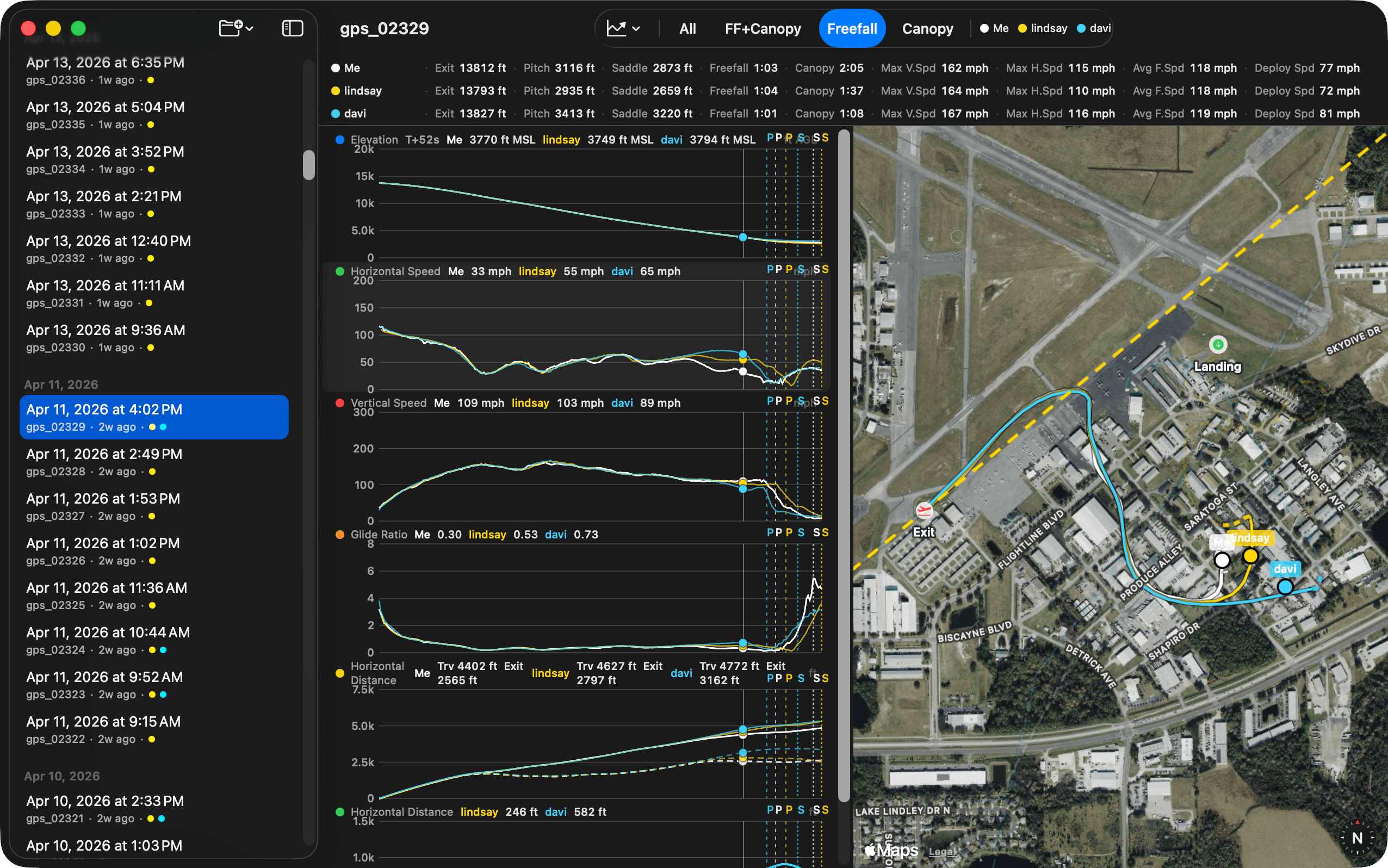
JumpView is a native macOS app for reviewing skydiving GPS recordings. It reads FlySight and DeepAndSteep Insight CSV files, detects jump phases, and shows the jump on synchronized charts and a map so you can inspect exit, freefall, deployment, canopy, landing, speed, altitude, and distance data.
Installation and configuration
- Download JumpView using the link at the top of this page.
- Open the downloaded
.zipfile. - Move JumpView.app to the
/Applicationsfolder. - Launch JumpView.app from
/Applications. - If macOS asks whether you want to open an application downloaded from the Internet, confirm the prompt.
- Choose the folder that contains your GPS recordings. If macOS asks for file access, allow access to that folder.
Screenshot
Loading GPS recordings
JumpView works with folders of CSV files from FlySight and DeepAndSteep Insight devices. A folder is treated as a
jumper. The primary jumper is shown as Me, and companion folders are shown by folder name. For companion
jumpers, use readable folder names such as denis, lindsay, or davi so it is easy to distinguish tracks in
the app.
For FlySight v1 and DeepAndSteep Insight recordings, place the gps_XXXXX.csv files directly in the selected
folder. For FlySight v2 recordings, JumpView reads TRACK.CSV files inside timestamp-named folders and skips
SENSOR.CSV files.
You can add companion folders when you want to compare multiple jumpers from the same load. JumpView matches recordings by freefall start time, so recordings that start late or begin mid-freefall can still be grouped with the correct jump.
Reviewing a jump
The sidebar groups jumps by date and includes an overview page with an activity heatmap. Selecting a jump opens the detail view with phase-aware statistics, synchronized charts, and a map of the flight path.
The charts support synchronized hover across all series and the map. Use the phase zoom modes to focus on the full jump, freefall plus canopy, freefall only, or canopy only. JumpView keeps the selected zoom mode as you move between jumps.
Comparing jumpers
When companion tracks are available, JumpView computes horizontal, vertical, and total distance from Me to each companion. These distance charts are useful for reviewing separation, group movement, and how the formation changed between exit, freefall, deployment, and canopy.
Track visibility can be toggled per jumper, and hidden tracks are removed from the charts, map, and zoom ranges.
Supported CSV formats
JumpView supports these recording layouts:
- FlySight v1 CSV files named like
gps_XXXXX.csv. - DeepAndSteep Insight CSV files using the FlySight v1-style column layout.
- FlySight v2
TRACK.CSVfiles in timestamp-named folders.
The parser uses column names instead of fixed column positions, so it can handle the common ordering differences between device firmware versions.
Release history
1.0.3 - 2026-04-27
- Another fix for auto-update. Sorry folks, you have to update to this version manually. Hope this is the last fix.
1.0.2 - 2026-04-26
- Fix compatibility issues with the macOS light theme.
1.0.1 - 2026-04-26
- Fix application failing to check for updates (missing permission to access the internet).
1.0 - 2026-04-26
- Initial release.
- Added parsing for FlySight v1, FlySight v2, and DeepAndSteep Insight CSV recordings.
- Added date-grouped jump browsing and an overview activity heatmap.
- Added phase detection for aircraft, freefall, deployment, canopy, and ground portions of a jump.
- Added synchronized speed, altitude, distance, and map views with hover and zoom support.
- Added multi-jumper matching and distance comparison charts.
- Added Sparkle-based automatic update support.
FAQ
How much does the application cost?
The application is free. Like it? Buy me a beer.
How do I update JumpView?
JumpView uses Sparkle for updates. If automatic update checks are enabled, JumpView notifies you when a new version is available and guides you through the update.
You can also use JumpView -> Check for Updates… from the menu bar. If you disabled update checks, download
the latest version from this page, quit JumpView, unzip the new version, and replace the existing application in
/Applications.
Does JumpView upload my GPS data?
No. JumpView works with local folders you select on your Mac. It stores security-scoped bookmarks so it can reopen those folders later, but it does not require an account or a cloud service. Sparkle may contact the update feed when checking for app updates.
Does JumpView modify GPS files?
No. JumpView is sandboxed and uses read-only access to user-selected files. It parses CSV recordings and stores preferences locally, but it does not edit the original GPS files.
Why can the first few GPS points be ignored?
FlySight devices sometimes record poor GPS fixes at startup, including wildly incorrect altitudes. JumpView skips initial points with poor vertical accuracy during phase detection and filters poor horizontal accuracy from distance calculations, which keeps exit altitude, landing elevation, and distance charts from being distorted by GPS warm-up data.
Which OS versions are supported?
macOS 15.1 or later. The application is built with SwiftUI and is macOS only.
Which devices are supported?
JumpView supports FlySight v1, FlySight v2, and DeepAndSteep Insight CSV recordings. If another device exports the same column layout, it may work as well.
Privacy Policy
We believe very strongly in our customers’ right to privacy. Our customer records are not for sale or trade, and we will not disclose our customer data to any third party except as may be required by law.
Any information that you provide to us in the course of interacting with our sales or technical support departments is held in strict confidence. This includes your contact information (including, but not limited to your email address and phone number), as well as any data that you supply to us in the course of a technical support interaction.
Support
Please email suggestions, ideas, questions, and bug reports to support+jumpview@loshadki.app.